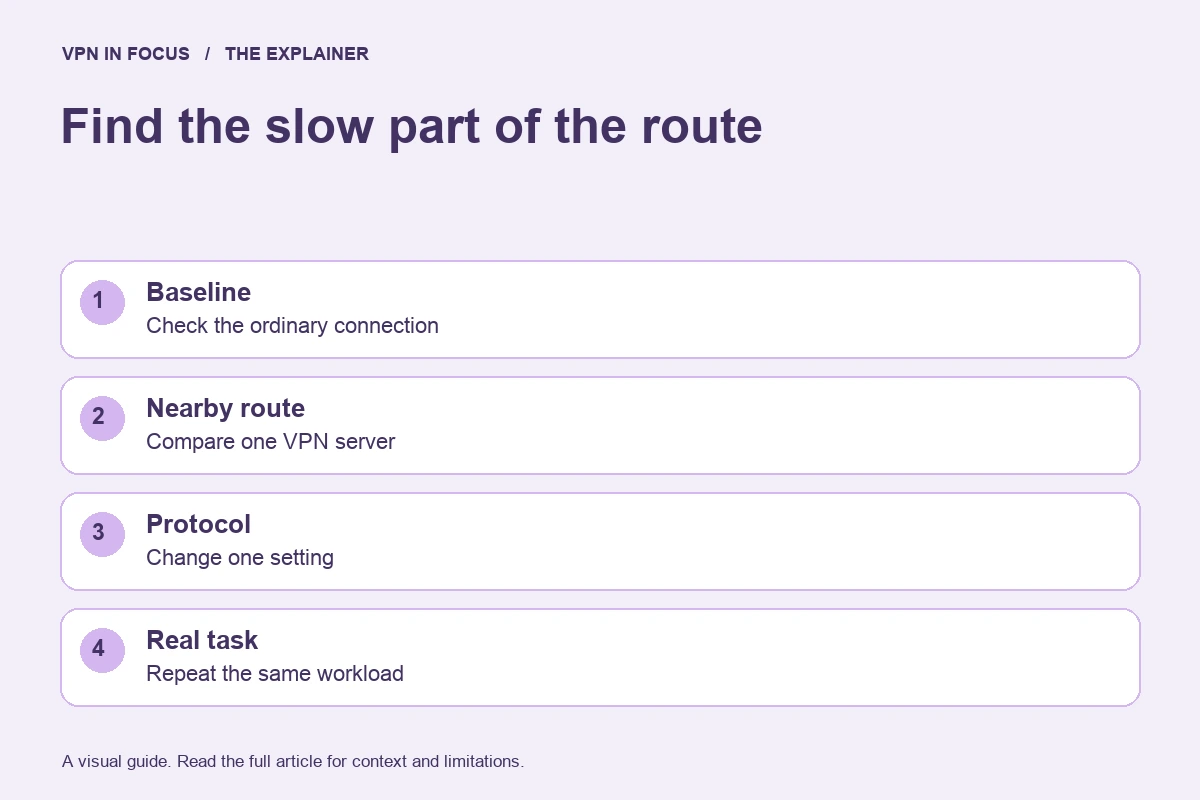
Check the underlying connection first, then use a nearby VPN location and change one setting at a time. A single download result is not enough to identify the cause of a slow call, page load, or upload.
A VPN adds a path between your device and the destination. That path may be longer, congested, or handled differently by the local network. The device also has work to do. Slow performance can therefore come from several places, and changing everything at once makes the cause harder to identify.
Before troubleshooting, describe the symptom. Does a website take a long time to begin loading? Does a video call freeze? Are large downloads slower, or only uploads? The same word, slow, can describe throughput, latency, packet loss, or a problem at one destination.
Step one: check the connection without the VPN
When it is appropriate for the task, disconnect the VPN and repeat a non-sensitive test. Use the same device and network close in time. If the underlying connection is already poor, start there. Moving closer to the access point or pausing a large backup can be more informative than changing a protocol.
Compare like with like. A wired desktop at home and a phone on hotel Wi-Fi are not interchangeable baselines. Neither are measurements made at very different times of day. Write down enough context to know what changed between runs.
Do not use a sensitive activity as a test merely to see whether it works faster without the VPN. Choose a harmless representative task. The goal is to diagnose the route without accidentally changing your privacy assumptions for something important.
Step two: reduce distance and complexity
Reconnect using a nearby location when the service permits it. Geographic distance is not the only factor, but a long detour can add latency. Avoid advanced multi-hop modes during the first comparison unless they are central to your requirements.
Close unnecessary transfers and confirm that other household devices are not saturating the connection. Upload congestion can make interactive tasks feel slow even when a download test looks respectable. Test a call or another responsive task if that is the symptom you care about.
If one destination is slow while others work normally, investigate whether the problem is specific to that service. The VPN may be involved, but a destination outage, account restriction, or remote congestion can produce similar symptoms.
Step three: change one supported setting
After observing the default, try another protocol recommended by the provider for the problem. Keep the location and task as consistent as possible. If you change both the location and protocol, you cannot attribute the result to either one confidently.
Repeat the comparison. Temporary congestion can make the first successful change look more decisive than it is. A small set of observations under similar conditions is more useful than collecting many unrelated numbers.
Keep unsupported or obsolete options out of the experiment. A workaround is not a good solution if it weakens the setup or leaves you using a configuration the provider no longer maintains. Consult current documentation rather than an old forum command.
Step four: inspect the device and app
Check for app and operating-system updates through their official channels. Restarting the app or device can clear a transient state, but record the symptom first if you may need support. If the problem returns, the record helps distinguish an intermittent failure from a permanent limitation.
A router running the VPN may have less processing capacity than a modern laptop. If you compare router-level and app-level connections, account for that difference. The device doing the encryption can be the bottleneck even when the internet plan is fast.
Other network software can also interact with the connection. Corporate VPNs, filtering applications, and custom DNS settings may change routing behavior. Do not disable managed security controls casually; ask the responsible administrator for guidance.
Keep a small troubleshooting log
| Record | Example |
|---|---|
| Device and app | Laptop, operating-system version, VPN app version |
| Connection | Home Wi-Fi, near access point |
| VPN setting | Nearby location, default protocol |
| Task | Ten-minute call, ordinary web browsing |
| Observation | Call freezes during a concurrent upload |
The example is a record format, not a result from our own testing. Your notes should describe what actually happened. Include failures as well as successful runs so the conclusion is not biased toward the best moment.
When to contact support
Contact the provider when the problem is repeatable, isolated to the VPN, and not resolved by its documented steps. Include the app version, operating system, location, protocol, and a concise description of the baseline. Ask what diagnostic data is needed before sending logs that may contain sensitive details.
A useful support interaction should help narrow the cause. If it only repeats generic suggestions, provide the controlled comparison and ask about known issues on the exact platform. Keep billing questions separate from technical troubleshooting so a refund deadline is not overlooked while you investigate.
Know when the result is good enough
The goal is a connection that meets your needs, not the largest number on a speed-test page. A stable call and responsive browsing may matter more than maximum bulk throughput. Conversely, a large-upload workflow needs a test that reflects upload capacity and consistency.
If a service cannot meet your requirements after a reasonable evaluation, compare alternatives using the same conditions. Our buying guide helps organize the shortlist, while the protocol guide explains the settings you may encounter.
Sources & further reading
Provider statements describe advertised capabilities. They are not independent performance measurements. Sources were consulted while preparing this article on September 24, 2026.
About the author

Maya’s section makes the mechanics of online privacy easier to understand. Topics include encrypted connections, public Wi-Fi, browser privacy, and small settings changes that readers can check on their own devices.
Maya Bennett is a fictional contributor profile created for this publication. This profile does not represent a verified individual or professional credentials. Read our editorial policy.