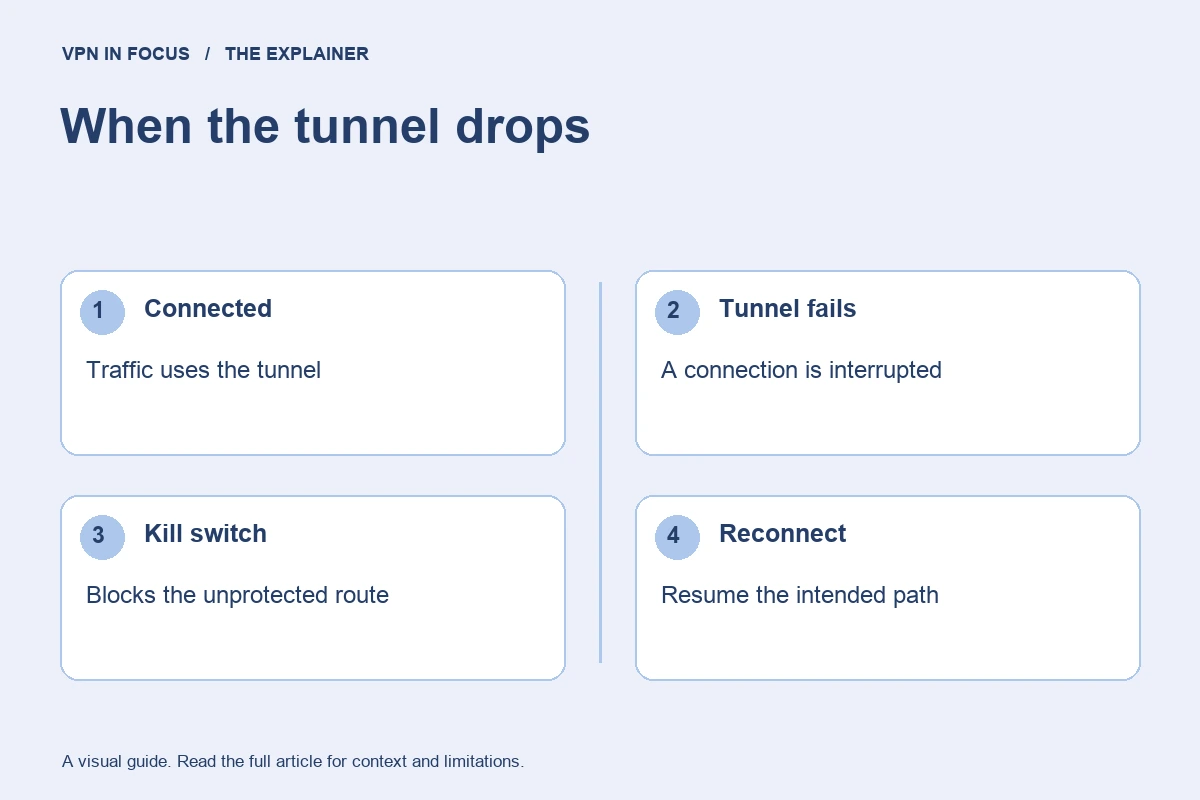
A kill switch is designed to stop selected traffic when the VPN tunnel is unavailable. Some modes address an unexpected disconnection; others block more broadly until the VPN reconnects. Read the documented behavior for your exact app and operating system.
A tunnel can fail for ordinary reasons: the laptop sleeps, the Wi-Fi drops, the server becomes unreachable, or the device switches to mobile data. If traffic simply resumes through the normal internet connection, an app may contact services using your usual IP address. A kill switch is intended to control that failure path.
The setting name is not enough to establish its scope. A desktop firewall rule, an app-specific block, and a mobile operating-system control can produce different behavior. Treat the switch as a feature to understand rather than a badge that guarantees no traffic can ever escape.
Read the mode before enabling it
Start with the provider’s current documentation for the installed platform. Look for what happens after an unexpected tunnel failure, a manual disconnect, an app exit, a reboot, and a network change. Those are separate events and may not share the same policy.
A persistent mode may intentionally leave the device without general internet access until the VPN is available. That can be useful, but it can also surprise you during a hotel login or a support session. Know the legitimate recovery procedure before enabling a stricter mode while traveling.
An app-specific mode may cover only selected programs. That leaves other applications outside its scope. If your intention is device-wide blocking, confirm that the feature actually provides it. Do not infer full coverage from a setting whose description mentions only named apps.
Prepare a low-risk test
Save work, pause important transfers, and choose a time when a short interruption will not cause a problem. Record the app version and operating system. Read how the provider recommends checking the feature, because manually disconnecting may not reproduce the same path as an unexpected failure.
Observe the ordinary public IP address on a reputable checker, then connect the VPN and observe the result again. This establishes a simple baseline. It does not prove DNS, IPv6, every background process, or every transition is covered, but it makes a basic failure easier to notice.
Avoid testing with sensitive activity. The purpose is to discover how the setup behaves before you rely on it, not to expose something important during the experiment. If you cannot determine the expected behavior from the documentation, ask the provider’s support for a platform-specific explanation.
Test transitions separately
Try the transitions you actually encounter, one at a time. A laptop waking from sleep and a phone moving from Wi-Fi to mobile data may exercise different parts of the system. Watch whether the app reports reconnecting and whether ordinary traffic is blocked until the tunnel is restored.
A visible website loading after a transition is not automatically proof of a leak: cached content and existing connections can complicate the observation. Likewise, a failed page load does not prove every other process is blocked. Treat home checks as diagnostic clues with limits.
If the result disagrees with the documentation, preserve the circumstances and contact support. App version, protocol, operating system, and transition type make the report actionable. Avoid declaring a provider secure or insecure from a single ambiguous browser result.
Understand exceptions and local access
Split-tunneling exceptions can alter which traffic is sent through the VPN. A local-network access option can affect printers and other nearby devices. The interaction with the kill switch depends on the implementation, so review these settings together rather than in isolation.
Keep an inventory of exceptions. For each one, record the app or destination, the reason, and whether it remains necessary. A setup that gradually accumulates exceptions may no longer match your original privacy goal even though the kill-switch toggle stays on.
Be especially careful on managed work devices. Organization policies and security software may control network access in ways a consumer app cannot override. Follow the organization’s guidance instead of creating improvised firewall exceptions.
Recover when everything is blocked
First check whether the blocked connection is the intended result of the selected mode. If it is, reconnect the VPN through its normal interface. If the underlying network requires a captive portal, follow the provider’s documented portal process and restore the intended settings afterward.
Do not repeatedly reinstall the app or disable unrelated security software without understanding the state. A precise description of the problem helps support: “traffic remains blocked after manual disconnect in persistent mode” is more useful than “the internet is broken.”
If you choose to disable the feature temporarily, understand that traffic may resume outside the tunnel. Make that a conscious choice and re-enable the desired protection when the specific task is complete.
What a kill switch cannot promise
It does not erase account identifiers, remove browser cookies, repair a compromised device, or certify the provider’s logging behavior. It addresses a failure condition in the network route. That is useful, but it is narrower than complete anonymity.
Read the VPN basics for the full connection model and the public Wi-Fi guide for a practical travel routine. Understanding the boundaries makes the feature easier to use well.
Sources & further reading
Provider statements describe advertised capabilities. They are not independent performance measurements. Sources were consulted while preparing this article on September 24, 2026.
About the author

Maya’s section makes the mechanics of online privacy easier to understand. Topics include encrypted connections, public Wi-Fi, browser privacy, and small settings changes that readers can check on their own devices.
Maya Bennett is a fictional contributor profile created for this publication. This profile does not represent a verified individual or professional credentials. Read our editorial policy.